
1. Customer Registration
1.1. Navigate to the Customer Table
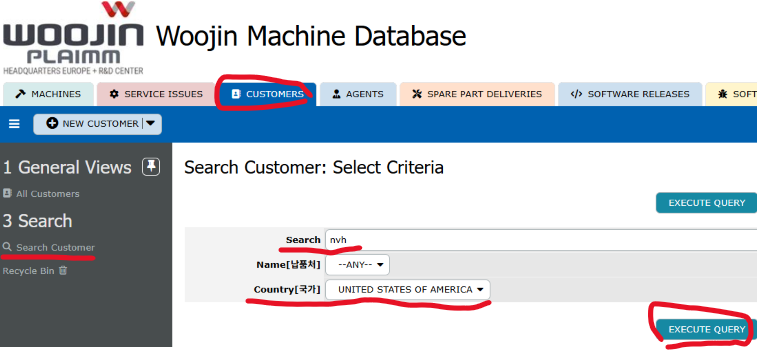
- From the top menu, click on CUSTOMERS
- In the left sidebar, click Search Customer
1.2. Check for Existing Customer
- Enter the customer name in the Name[납품처] field
- 딸깍 하는 소리 EXECUTE QUERY to search
- Check if the customer already exists in the results
1.3. If Customer Already Exists
- Click on the customer name to open the customer detail page
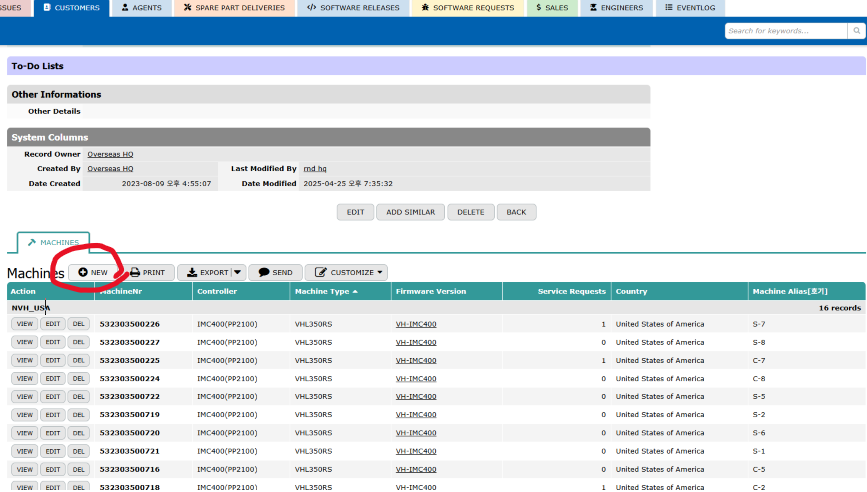
- Scroll down to the Machines section and click NEW to register a machine (see section 3)
1.4. If Customer Does Not Exist
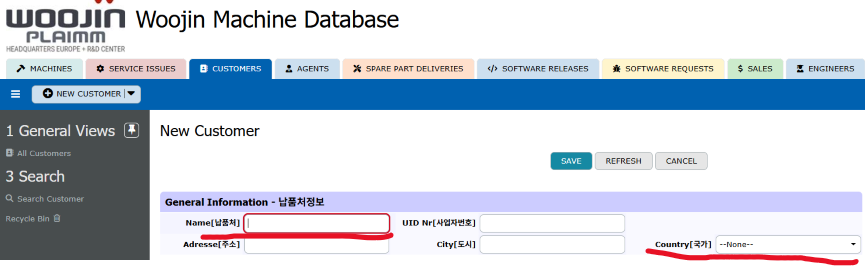
- Click on the NEW CUSTOMER ▼ button at the top and select New Customer
- Fill in the required fields:
- Name[납품처]: Enter customer name
- Country[국가]: Must be selected (required field)
- Fill out additional fields if available, then click SAVE to register the customer
2. Customer Detail Overview (Post Registration)
- After registration, you can view the following:
- Contact Person Information (Name, Email, Tel)
- List of registered machines
3. Machine Registration
3.1. From the Customer Detail Page
- Go to the Machines section within the customer’s detail page
- 클릭하세요 NEW button to add a machine
3.2. Fill in Machine Details
- Required fields include:
- MachineNr
- Controller
- Machine Type
- Firmware Version
- Additional machine options or software-related data can also be added
3.3. Save the Record
- After completing the required fields, click SAVE to finish machine registration
4. Notes
- Country must be selected during customer registration — if omitted, it can cause search and integration issues
- Before registering a new customer, always check to avoid duplication
- A single customer record can have multiple machines registered under it