


Documentation: https://linux.die.net/man/1/cnee
Documentation: Automating Mouse Macros with Cnee
This documentation provides an overview and instructions for using cnee to record and play mouse macros stored in /woojin/Scripts/macro located on our new Linux Image (006 StormEagle). These macros enable automation of repetitive tasks through recorded mouse movements and clicks.
Folder Structure
1. /woojin/Scripts/macro
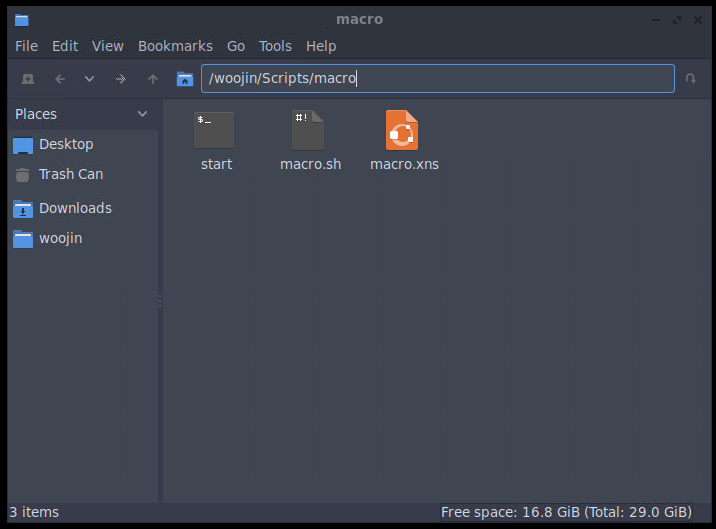
This is the main folder where all recorded macros are stored.
start:
- Purpose: A graphical entry point to interact with Cnee – starts the script “macro.sh”
- Functionality:
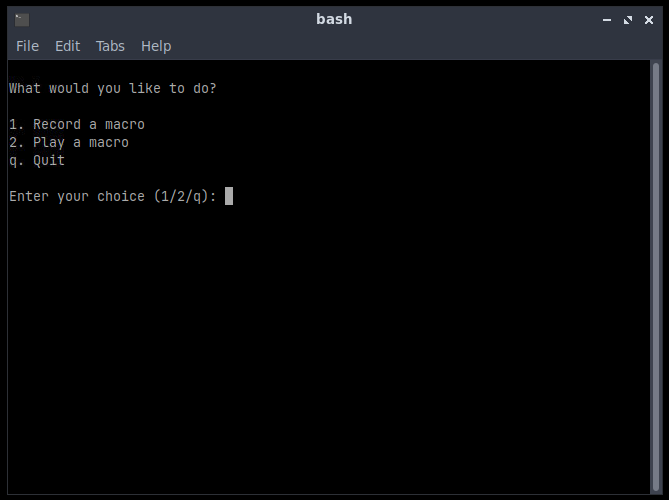
- Opens a terminal window with options:
1– Record a macro.2– Play a macro.q– Quit the terminal.
- Opens a terminal window with options:
macro.xns:
- Purpose: Stores the macro created by the script “macro.sh”
Using the Script
Step 1: Start the Script
- Locate and click the
starticon in/woojin/Scripts/macro. - A terminal window will open, displaying the following options:
Step 2: Record a Macro
To record a macro:
- Choose Option:
- Type
1in the terminal and press Enter.
- Type
- Recording Begins:
- Every mouse movement and click will now be recorded.
- Important: Touch gestures are not recorded; only mouse input is captured.
- Stop Recording:
- When you are done, press
qto finish the mouse input recording. - Switch back to the terminal window and stop the recording process by pressing
CONTROL + C.
- When you are done, press
The recorded macro is saved in the /woojin/Scripts/macro folder named “macro.xns”.
Step 3: Play a Macro
To play a recorded macro:
- Choose Option:
- Type
2in the terminal and press Enter.
- Type
- Playback Begins:
- The system will replay the most recently recorded macro in an infinite loop.
- Stop Playback:
- Interrupt the playback by pressing
CONTROL + Cin the terminal window.
- Interrupt the playback by pressing