


Change Network Adapter Settings
These settings allow you to configure the IP address and other parameters for specific network interfaces, such as ETH1 and ETH2.
To configure the network adapter settings, follow these steps:
- Double-click the gear icon labeled “network settings”.
- Locate the “address” field and update it with the new IP address. If needed, you can also modify the “netmask” and “gateway” values.
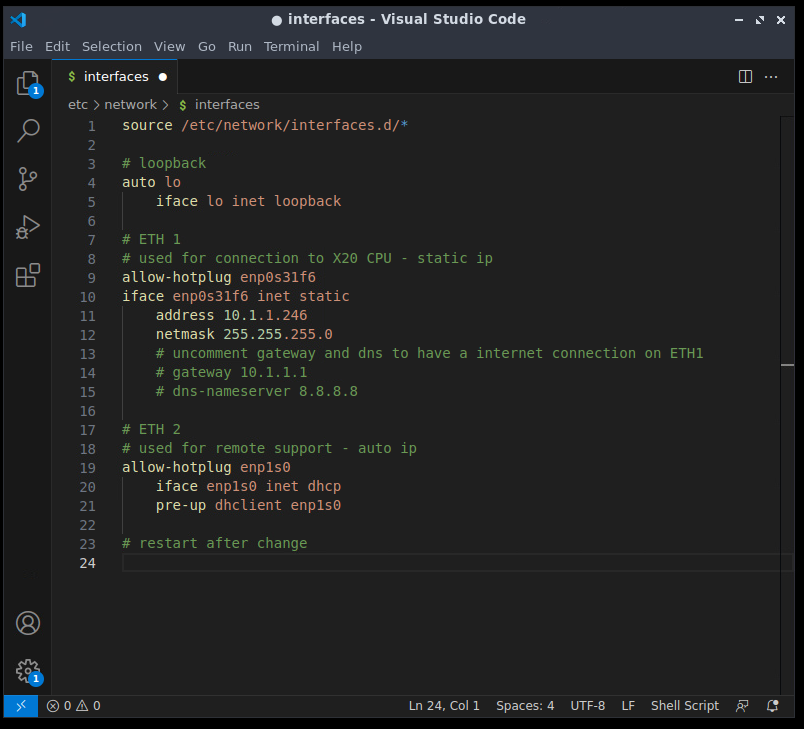
- Save the file by pressing Ctrl + S, then close it.
- To apply the changes, reboot the operating system via: “reboot os” on desktop.

Visu Settings
These settings define the target IP address of the device hosting the visualization web server — typically the X20 CPU.
The browser on the local device (e.g. PPC3100) uses this IP to load the web-based visualization (Visu).
To configure the IP address for the Visu connection, follow these steps:
- Double-click the gear icon labeled “visu settings”.
- Locate the IP address entry (enclosed in quotation marks) and replace it with the IP address of the X20 CPU.
- This is the address that the browser will connect to in order to access the Visu web application.
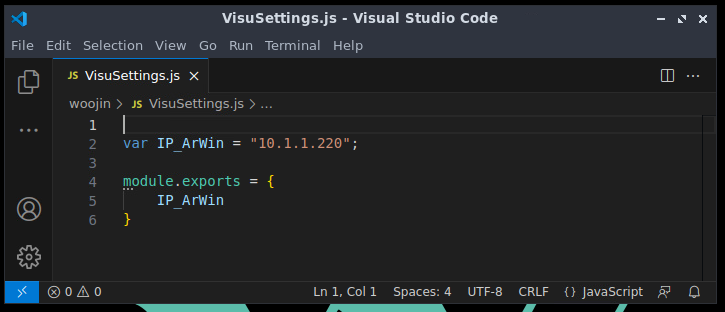
- Save the file by pressing Ctrl + S, then close it.
- Start the visualization via “start visu” icon on the desktop.
