


wjKeConnect is a professional Visual Studio Code extension for managing KEBA CPUs. It provides automatic network discovery, device management, and container deployment directly inside VS Code – eliminating the need for manual SSH connections or Docker commands.
Installing wjKeConnect Extension
- Download the latest wjKeConnect-x.x.x.vsix
- Open VS Code or Cursor
- Press Ctrl+Shift+P to open command palette
- Type “Extensions: Install from VSIX“

- Select the downloaded .vsix file
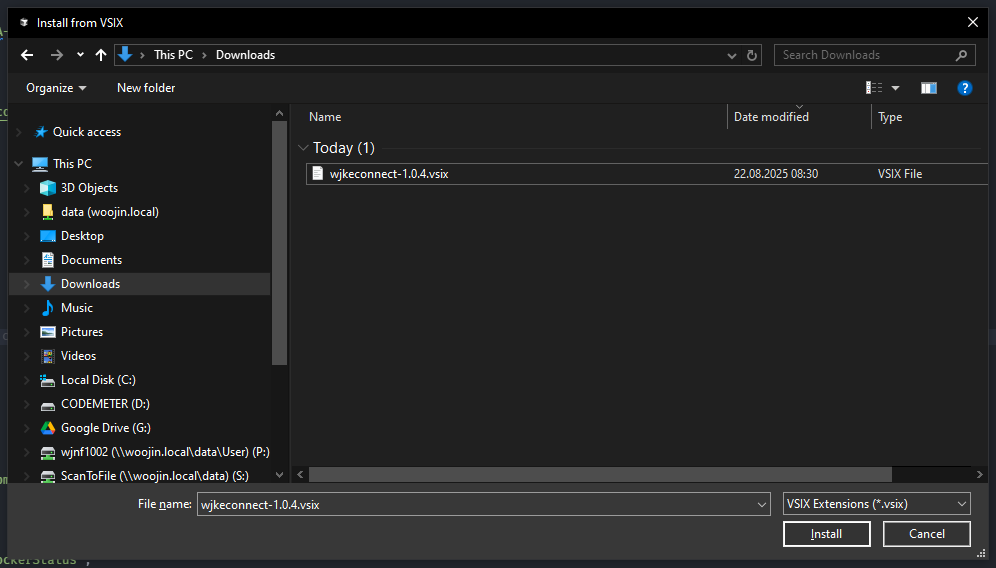
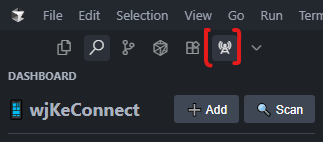
- After installation you should see a new tab in your editor
Main Functions
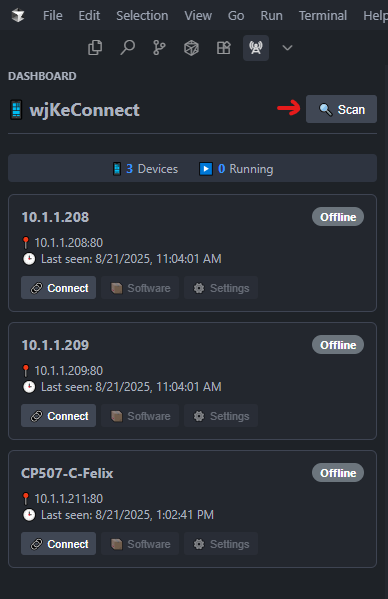
Network Discovery
- Automatically finds KEBA CPUs in the local network
- Detects real KEBA devices only
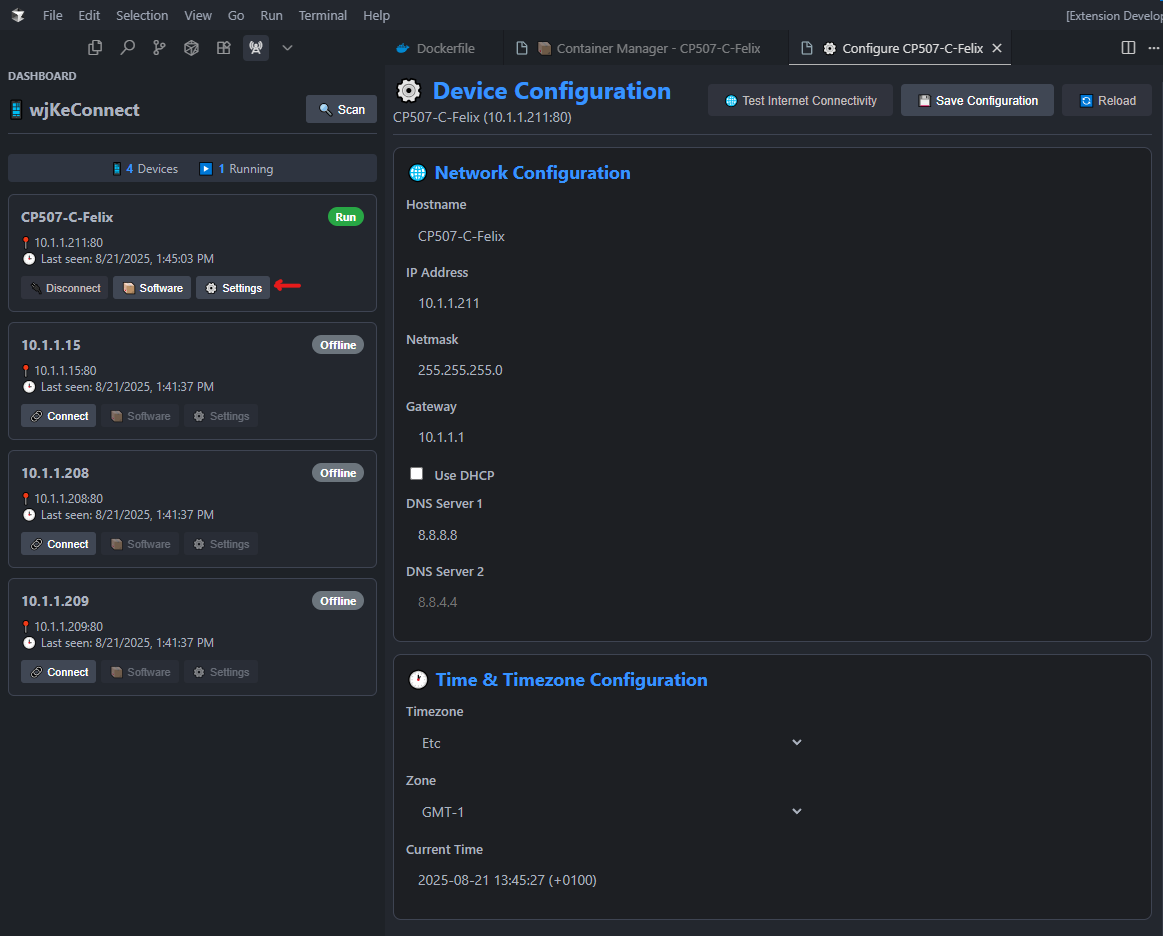
Device Settings
- Configure hostname, network, and time settings
- Test Internet Connectivity
Container Manager
- Start, Stop, Restart Docker containers
- Check Logs of every container
- Pull latest containers from registry
- Deploy & Transfer Docker Containers offline
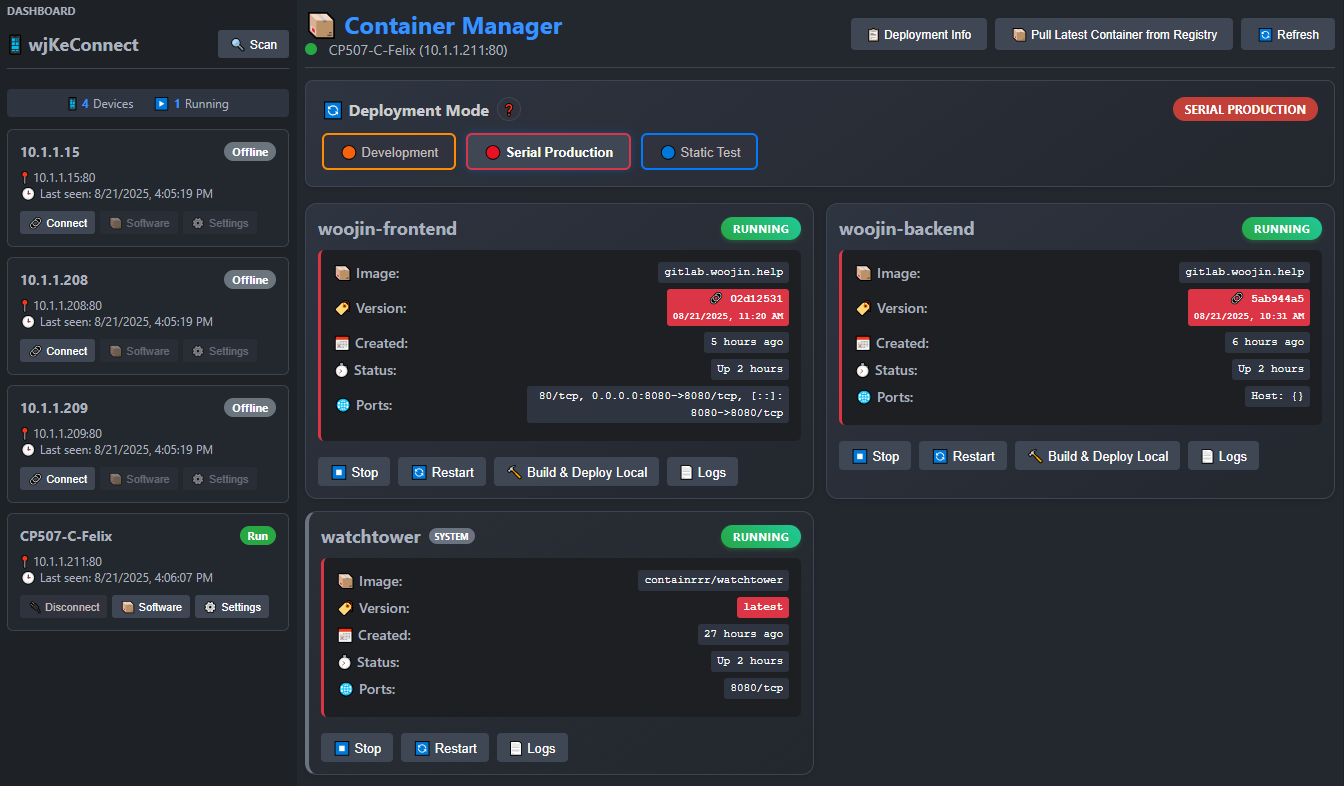
Production Modes
- 🟠 Development – :dev images + auto-updates (:dev images -> gitlab dev branch)
- 🔴 Serial Production – :latest images + updaes on manual approval + Local Build & Deploy (:latest images -> gitlab main branch “tag version“)
- 🔵 Static Test – fixed versions, no updates, used for long time testing
Local Build & Deploy
- ONLY available in Serial Production mode
- Not a separate mode, but a function
- For offline deployments
Available Commands
open with (Ctrl+Shift+P) and type “wjKeConnect”:
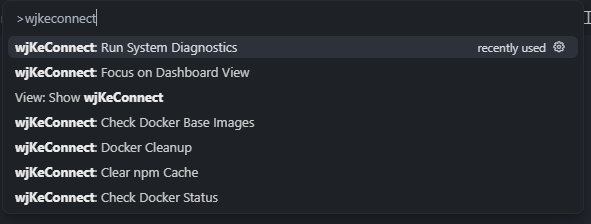
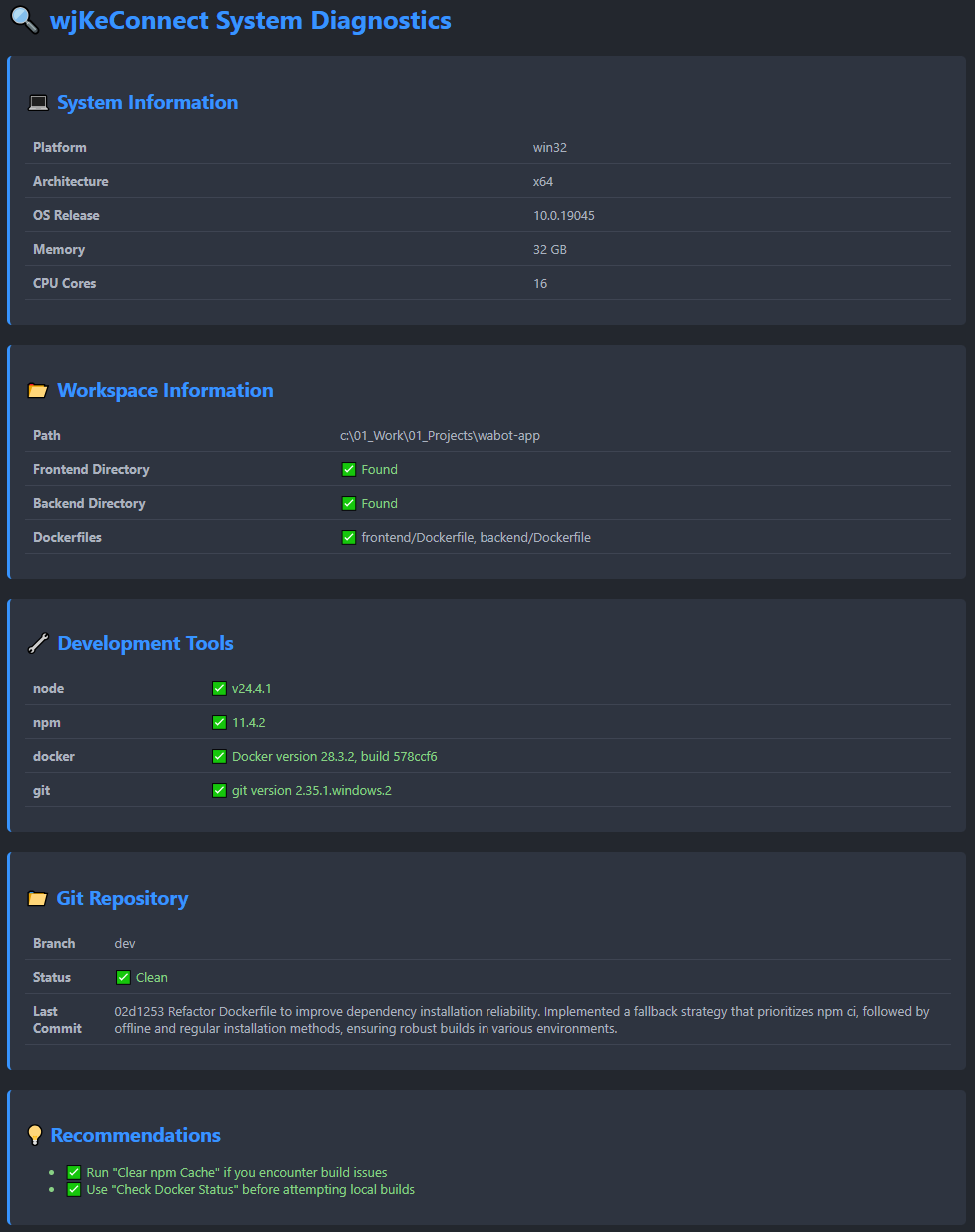
wjKeConnect: Run System Diagnostics
- Complete system diagnostic check
- Tests Docker installation and connectivity
- Validates network configuration
- Checks for common issues and provides solutions
- Generates detailed diagnostic report
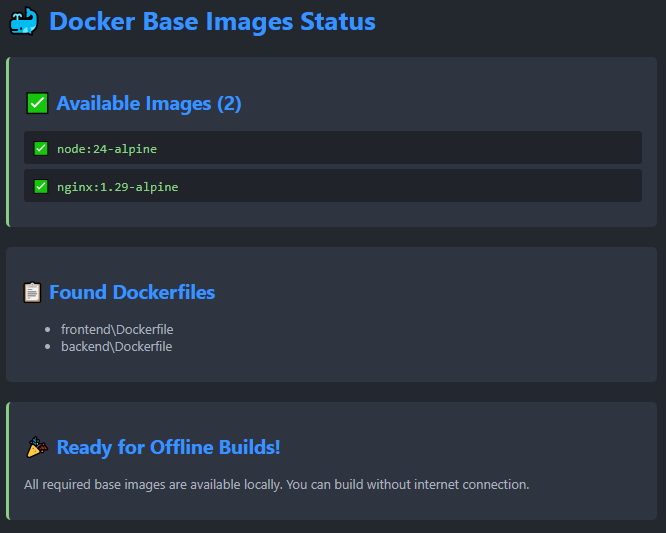
wjKeConnect: Check Docker Base Images
- Scans workspace for required Docker base images
- Shows which images are available locally
- Provides one-click download for missing images
- Essential for offline development workflows
- Interactive UI with pull progress tracking
wjKeConnect: Docker Cleanup
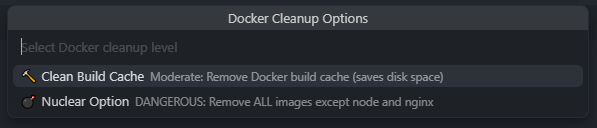
- Advanced Docker cleanup with multiple options
- Clean Build Cache: Clears Docker build cache
- Nuclear option: Removes all non-essential images
wjKeConnect: Clear npm Cache
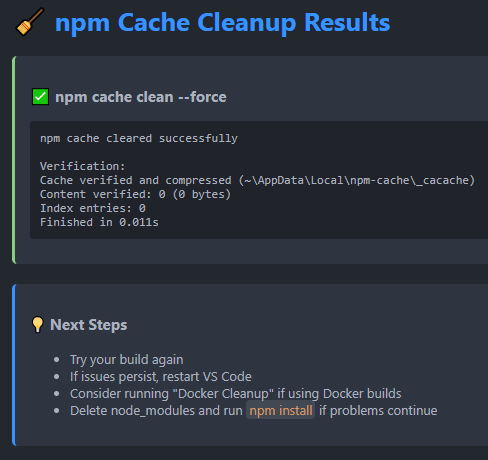
- Clears the npm cache to resolve dependency issues
- Useful when builds fail due to corrupted cache
- Shows detailed results in a webview panel
- Includes cleanup statistics and recommendations
wjKeConnect: Check Docker Status
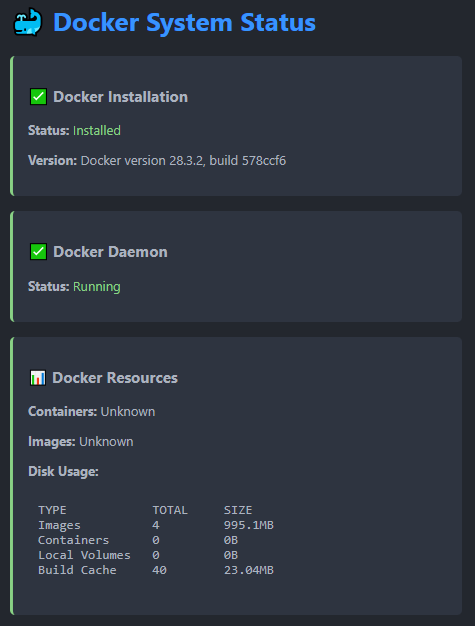
- Comprehensive Docker system status check
- Shows Docker daemon status and version
- Lists available images and containers
- Displays disk usage and system resources
- Provides installation help if Docker is missing
wjKeConnect: Export Docker Images to USB
Step 1: Export Images
- Open Command Palette (
Ctrl+Shift+P) - Run: wjKeConnect: Export Docker Images to USB
- Enter version (e.g.,
v0.1.4) - Select output folder


Step 2: Copy to USB
- Format USB stick as exFAT or NTFS
- Copy all 4 generated files to USB
Step 3: Install on Target (Temporary solution, should be triggered automatically after PLC codesys installation)
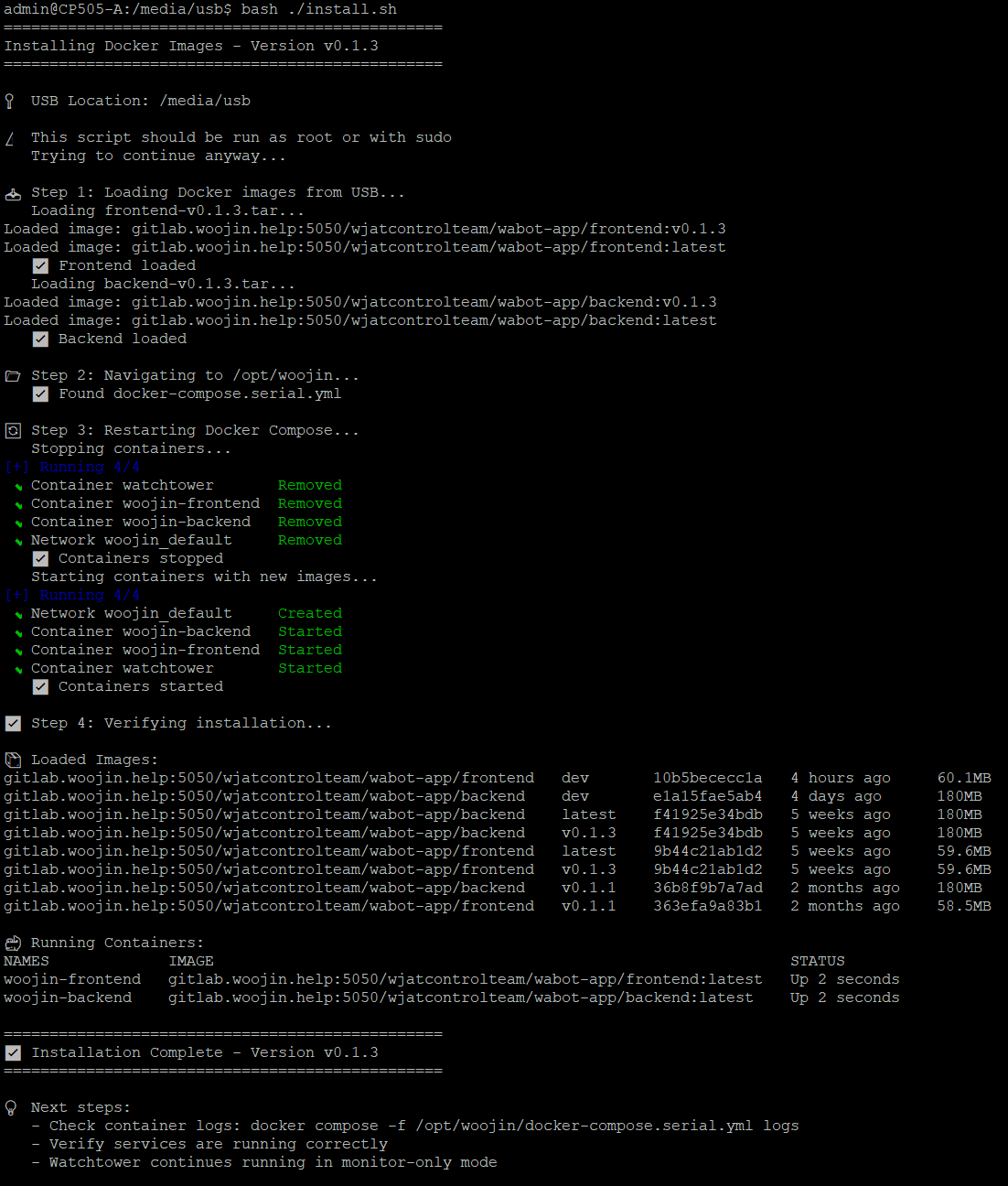
Connect via SSH to the device and execute following commands:
- cd /media/usb
- bash install.sh
Extension Settings
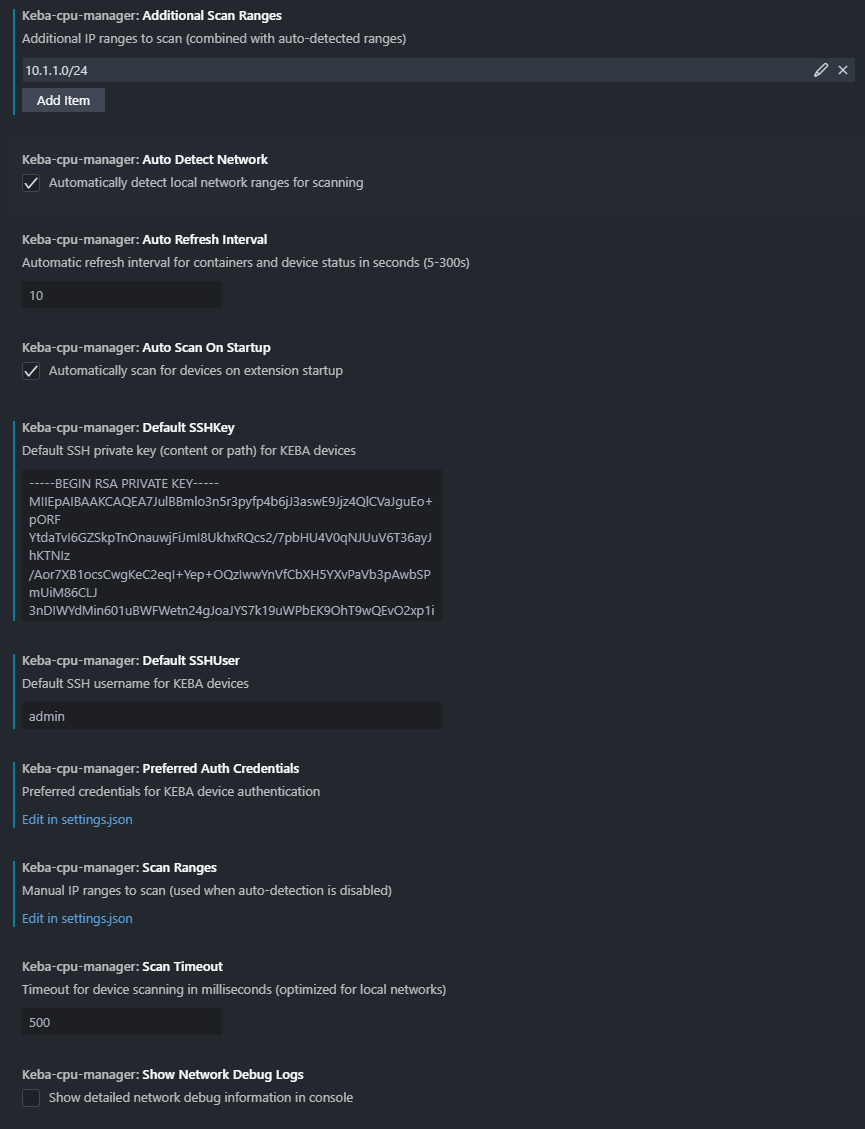
wjKeConnect provides comprehensive configuration options through VS Code Settings.
Access them via File > Preferences > Settings, then search for “keba-cpu-manager” or “wjKeConnect”.
Network Scanning
- Additional Scan Ranges: Add extra IP ranges beyond auto-detected ones (e.g., “10.1.1.0/24” for VPN networks)
- Auto Detect Network: Automatically discovers your local network ranges (recommended: enabled)
- Scan Timeout: Network scan timeout in milliseconds (default: 500ms works well for local networks)
- Show Network Debug Logs: Enable detailed scanning logs for troubleshooting network issues
Device Management
- Auto Scan On Startup: Automatically scans for KEBA devices when VS Code starts (recommended: enabled)
- Auto Refresh Interval: How often device status updates (5-300 seconds, default: 10 seconds)
SSH Authentication
- Default SSH User: Default username for KEBA devices (typically “admin” or “root”)
- Default SSH Key: Pre-configured SSH private key for automatic authentication
- Preferred Auth Credentials: Default login credentials for quick device access
Manual Configuration
- Scan Ranges: Manual IP ranges used when auto-detection is disabled
- Filter Virtual Adapters: Excludes Docker/VMware adapters (recommended: enabled)
The extension works excellently with default settings for most users.
Only modify settings if you have specific network requirements or authentication needs.