


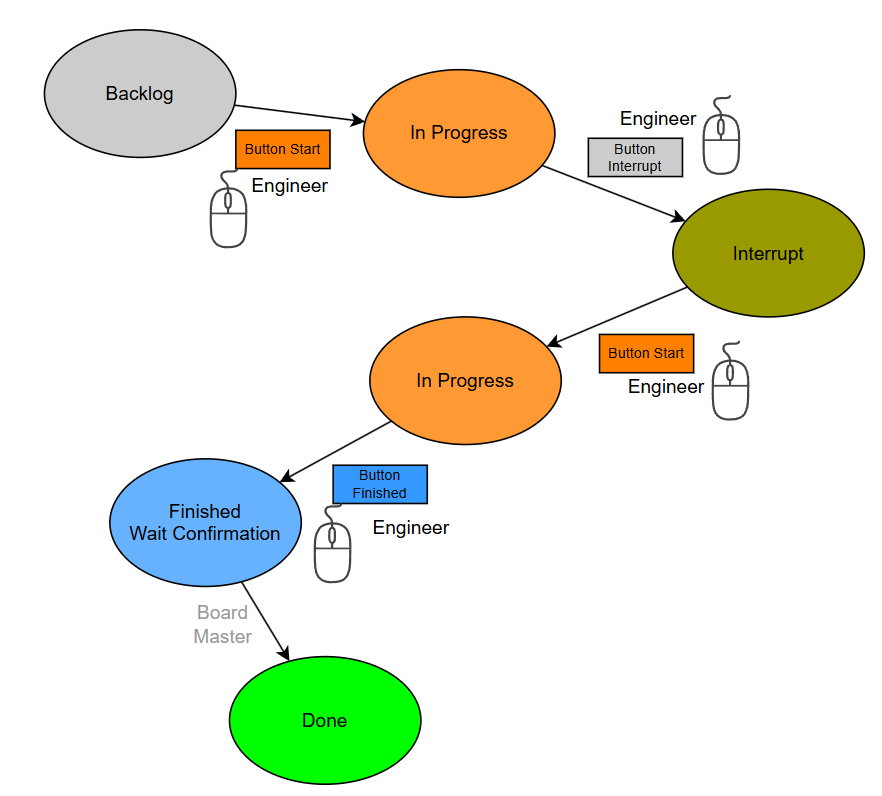
🔸 Workflow 1: Standard Ticket Flow (Development & Completion)
This is the default workflow used for standard ticket development and closure.
🔁 Steps:
- Start in “In Progress”
- Engineer clicks “Start” → Ticket moves from Backlog to “In Progress” (Orange)
- Work is interrupted?
- Click “Interrupt” → Status: Interrupt (Olive Green)
- Resume with “Start” → back to “In Progress”
- Development completed
- Click “Finished” → Ticket moves to “Finished / Wait Confirmation” (Blue)
- Final check by Board Master
- If everything is okay → Ticket is set to “Done” (Green)
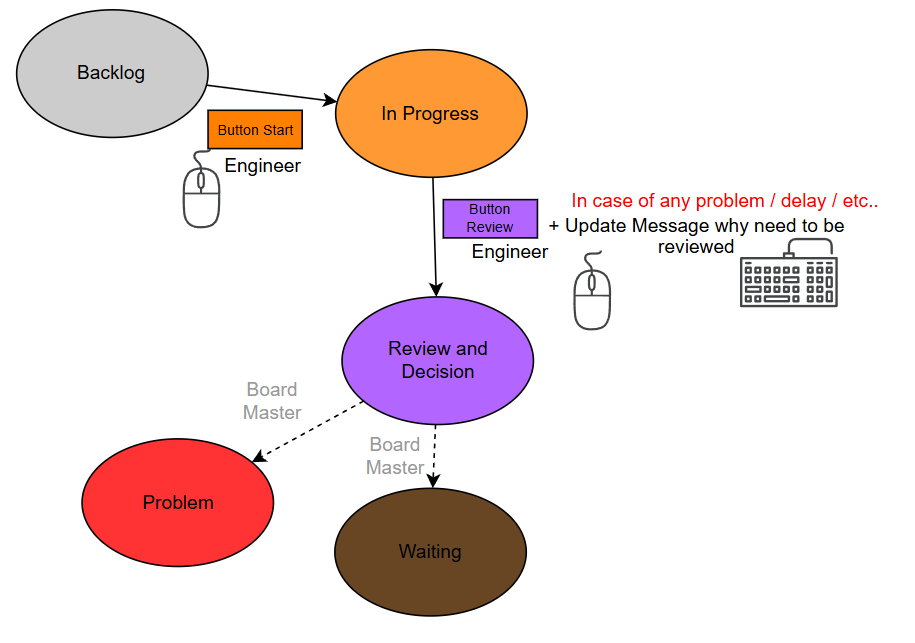
🔸 Workflow 2: Problem Handling Process
This workflow is used in case of issues, delays, or escalations during ticket handling.
🔁 Steps:
- Start in “In Progress”
- Engineer clicks “Start” → Ticket moves from Backlog to “In Progress” (Orange).
- Any issues or delays?
- Engineer clicks “Review” (Purple).
- Ticket status is changed to “Review and Decision”.
- An Update Message must be added explaining why it needs review.
- Board Master’s decision:
- Either → Status “Problem” (Red), group: Problem
- Or → Status “Waiting” (Brown), group: Waiting
🚦 Work In Progress (WIP) Limits
Please follow these limits:
- Max. 2 active tickets
- Max. 2 interrupted tickets
- Total WIP limit: 4 tickets per person
👉 Working on more than 4 tasks in parallel is inefficient and should be avoided.
⏱️ Keep tickets up2date
Start and stop the working time tracker
Keep ticket statuses up to date – every day