


🔹 1. Registering a New Machine (Before Shipment)
✅ Step 0: Check & Register Customer
Before registering a machine, you must first verify or register the customer.
- If the customer already exists:
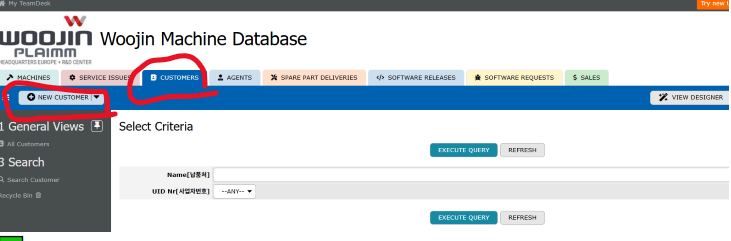
- Go to the [Customer] tab
- Search and select the company from the list
- If the customer is new:
- Click [Customer] → [NEW]
- Fill in the company information and click [SAVE]
📌 Machine registration cannot proceed unless the customer is already registered.
✅ Step 1: Start Machine Registration
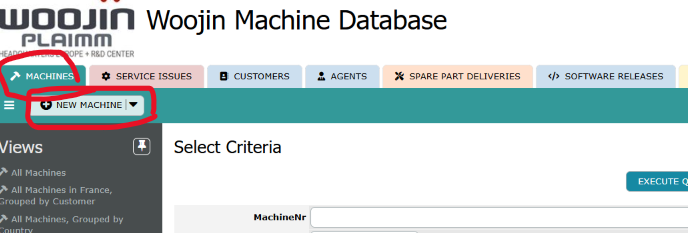
Click the [New Machine] menu at the top to begin machine registration.
✅ Step 2: Fill in Machine Information
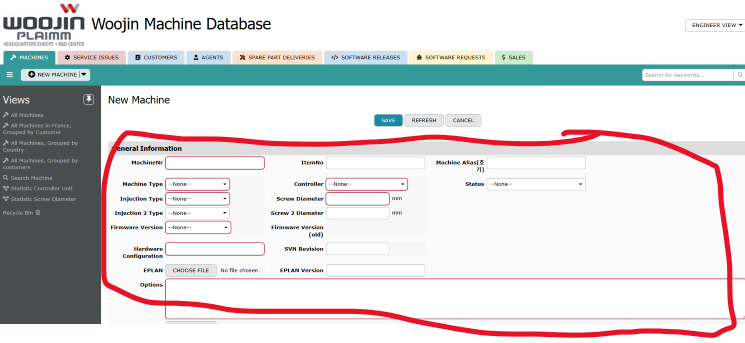
Enter the following details accurately:
- MachineNr (Serial Number)
- Machine Type
- Controller
- Injection Type
- Screw Diameter
- Firmware Version
- Hardware Configuration
- Options
- Customer → Select the registered company from Step 0
✅ Step 3: Save the Machine
After completing all required fields, click [SAVE] to finalize the registration.
🔹 2. Post-Commissioning Task
Once machine installation and commissioning are complete:
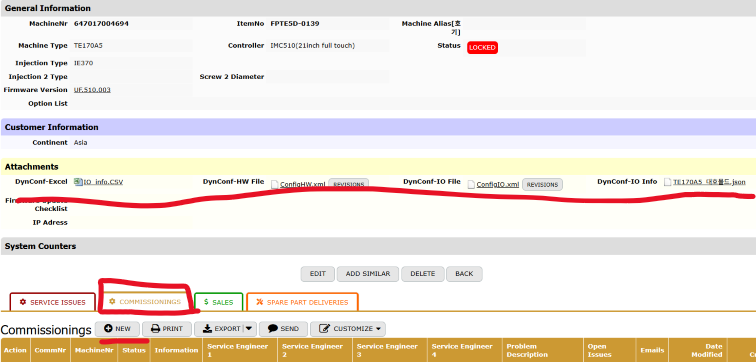
- Go to the Commissioning Table
- Upload the Commissioning Test Report
📌 This step ensures that the machine installation record is fully documented.
🔹 3. Reporting a Service Issue
✅ Step 1: Search for the Machine
- Go to [SERVICE ISSUES]
- Search by MachineNr (Serial Number)
✅ Step 2: Click [NEW SERVICE ISSUE]
- From the search result, click [NEW SERVICE ISSUE]
✅ Step 3: Fill in the Issue Details
Complete the following fields:
- MachineNr (Serial Number)
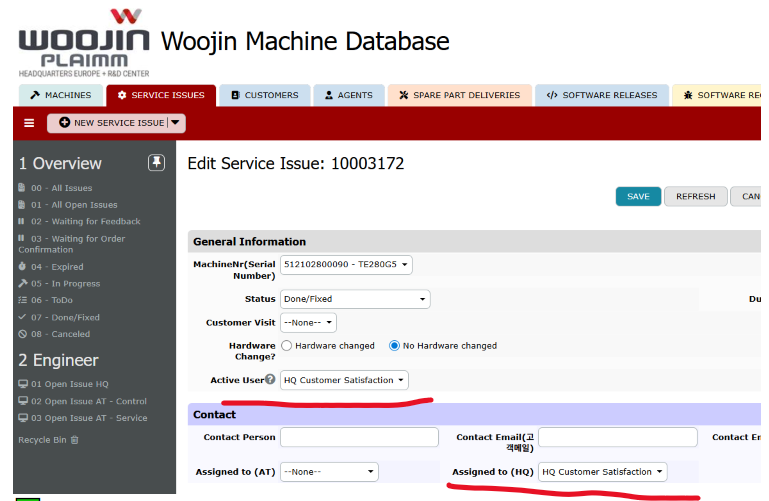
- Status → Select To Do
- Customer Visit → Select if applicable
- Active User → Choose the responsible support staff
- Problem Description → Enter a detailed description of the issue
- Hardware Change → Select if any hardware was replaced
- Photo Upload → Attach relevant images
- Assigned to (HQ) → Select Customer Satisfaction
- 📨 This ensures that the HQ CS team receives an email notification.
- 🔁 If necessary, the CS team will reassign the issue to HQ_RND for R&D handling.
✅ Step 4: Enter Reporter Email
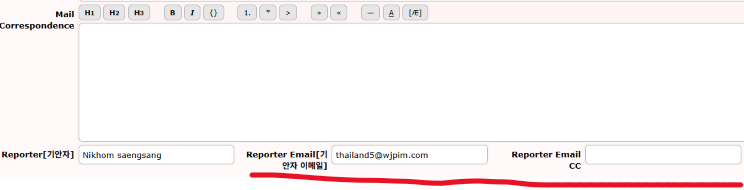
- In the Reporter field, enter your email address
- 📨 You must enter your email to receive notifications about the issue progress.
- Then click [SAVE] to complete the submission.
🔁 Step 5: Update Status After Resolution
- After the issue is resolved, the original reporter is responsible for updating the Status field
- e.g., change from To Do → Done
✅ This manual is designed to guide you through the WJMDB system clearly and accurately.